
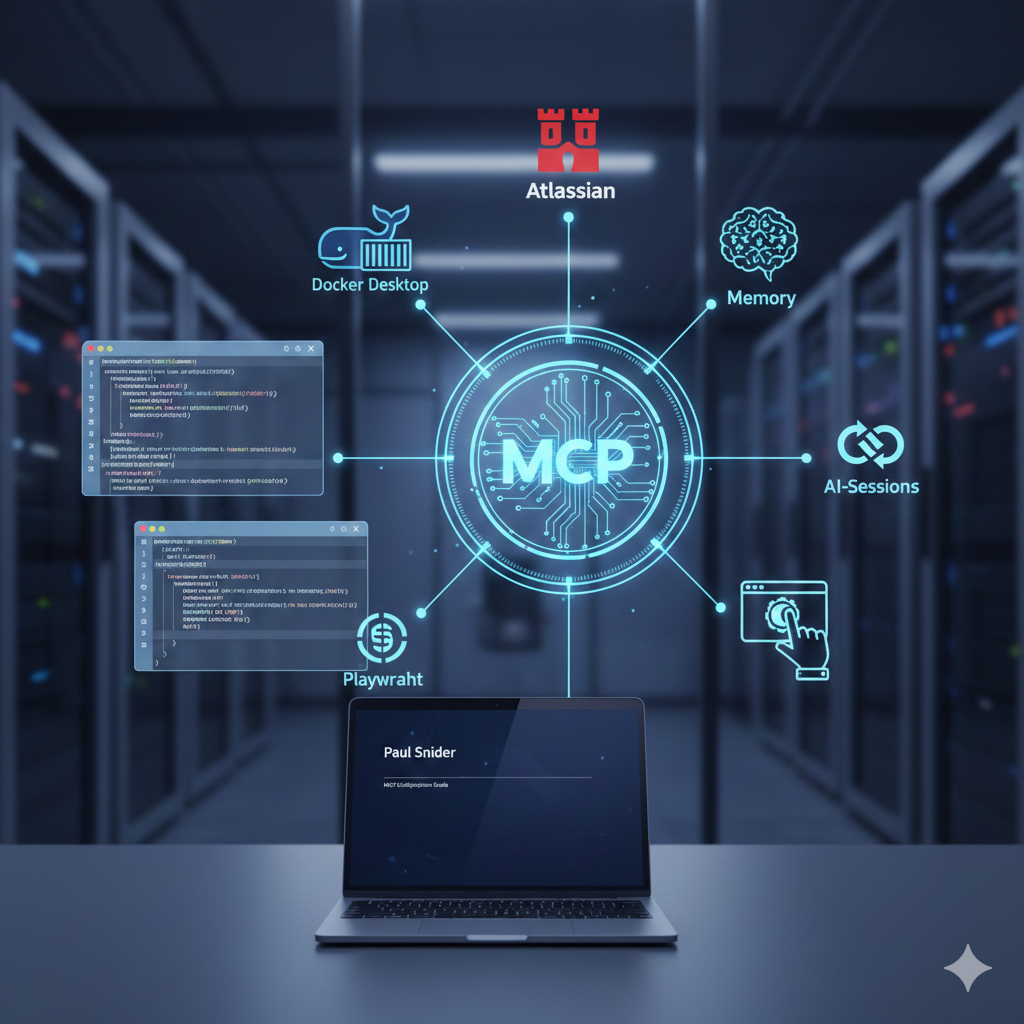
A friend asked me about MCP setup the other day. "Where do the config files live? How do I get Docker's MCP thing working?" I've answered these questions enough times that it made sense to write it all down. Here's the guide I wish I had when I started connecting my AI tools to everything else.
MCP Configuration Locations
Where your AI tools store MCP server configurations differs by tool. Here's where to find and edit them.
Claude Code
Location: ~/.claude/mcp.json
{
  "mcpServers": {
    "server-name": {
      "command": "npx",
      "args": ["package-name"],
      "env": {}
    }
  }
}
OpenAI Codex CLI
Location: ~/.codex/config.toml
[mcp_servers."server-name"]
command = "npx"
args = ["package-name"]

[mcp_servers."server-name".env]
MY_VAR = "value"
Key difference: Codex uses TOML with mcp_servers (underscore, not hyphen). Claude Code uses JSON with mcpServers (camelCase). Getting the syntax wrong means your servers silently won't load.
For more details, see the Codex MCP documentation and Codex local configuration guide.
Kiro
Workspace config: .kiro/settings/mcp.json (project-specific)
User config: ~/.kiro/settings/mcp.json (global)
Precedence: Kiro merges both files; workspace settings override user settings.
{
  "mcpServers": {
    "server-name": {
      "command": "npx",
      "args": ["package-name"],
      "env": {
        "API_TOKEN": "${API_TOKEN}"
      }
    }
  }
}
Key difference: Kiro supports both local (command + args) and remote (url) servers in the same JSON format, and it automatically reloads configs on save. Use the command palette entries "Kiro: Open workspace MCP config (JSON)" or "Kiro: Open user MCP config (JSON)" for quick edits.
Docker Desktop MCP Toolkit
Docker's MCP Toolkit simplifies running MCP servers in secure containers with one-click setup from Docker Desktop.
The Gateway Configuration
Instead of configuring each MCP server individually, Docker provides a unified gateway that proxies all your MCP servers through a single connection.
Claude Code (~/.claude/mcp.json):
{
  "mcpServers": {
    "docker-gateway": {
      "command": "docker",
      "args": ["mcp", "gateway", "run"]
    }
  }
}
Codex CLI (~/.codex/config.toml):
[mcp_servers."docker-gateway"]
command = "docker"
args = ["mcp", "gateway", "run"]
Kiro (.kiro/settings/mcp.json or ~/.kiro/settings/mcp.json): same as Claude Code.
Using the MCP Catalog
- Open Docker Desktop and click "MCP Toolkit" in the sidebar
- Browse 100+ verified MCP servers from partners like Stripe, Grafana, GitHub, and Neo4j
- One-click enable any server you need
- Docker handles containers, OAuth, and security automatically
- Verify with
claude mcp listorcodex mcp list
Why Docker? Every MCP server runs sandboxed (1 CPU, 2GB RAM, no host filesystem access by default). Built-in OAuth management means you authenticate once through Docker Hub. All images are digitally signed with SBOMs for transparency.
For full documentation, see Docker MCP Catalog and Toolkit and their getting started guide.
Atlassian MCP: Jira and Confluence Integration
The Atlassian MCP server connects your AI tools directly to Jira and Confluence. Read issues, search documentation, update tickets, manage sprints—all from your coding session without context switching.
This is a hosted/remote MCP server, so there's no local installation required. OAuth handles authentication through your browser.
Claude Code:
{
  "mcpServers": {
    "atlassian": {
      "command": "npx",
      "args": ["-y", "mcp-remote", "https://mcp.atlassian.com/v1/sse"]
    }
  }
}
Codex CLI:
[features]
rmcp_client = true

[mcp_servers."atlassian"]
url = "https://mcp.atlassian.com/v1/sse"
Kiro: uses a remote server entry with url (no mcp-remote wrapper needed).
{
  "mcpServers": {
    "atlassian": {
      "url": "https://mcp.atlassian.com/v1/sse"
    }
  }
}
First connection triggers an OAuth flow in your browser. All permissions match your existing Atlassian account access.
Pro tip: If you need to re-authenticate or force a fresh OAuth flow, run this command directly in your terminal:
npx -y mcp-remote https://mcp.atlassian.com/v1/sseGitHub: atlassian/atlassian-mcp-server
Memory MCP: Persistent Knowledge Graph
The Memory MCP server gives your AI assistant persistent memory across sessions. It stores entities, relationships, and observations in a local knowledge graph. No more re-explaining your project architecture or team conventions every time you start a new session.
Claude Code:
{
  "mcpServers": {
    "memory": {
      "command": "npx",
      "args": ["-y", "@modelcontextprotocol/server-memory"],
      "env": {
        "MEMORY_FILE_PATH": "~/.ai-memory/memory.jsonl"
      }
    }
  }
}
Codex CLI:
[mcp_servers."memory"]
command = "npx"
args = ["-y", "@modelcontextprotocol/server-memory"]

[mcp_servers."memory".env]
MEMORY_FILE_PATH = "~/.ai-memory/memory.jsonl"
Kiro: same as Claude Code.
Pro tip: Use a shared MEMORY_FILE_PATH across both tools so memory persists whether you're in Claude Code or Codex.
GitHub: modelcontextprotocol/servers/src/memory
AI-Sessions MCP: Cross-Tool Handoffs
This one solves a real problem: what happens when you hit token limits in one tool and need to continue in another? Or when --resume can't find the session you're looking for?
AI-Sessions MCP indexes your local sessions from Claude Code, OpenAI Codex, Gemini CLI, and opencode. Search across all of them, or hand off a conversation from one tool to another.
Claude Code:
{
  "mcpServers": {
    "ai-sessions": {
      "command": "/path/to/ai-sessions-mcp"
    }
  }
}
Codex CLI:
[mcp_servers."ai-sessions"]
command = "/path/to/ai-sessions-mcp"
args = []
Kiro: same as Claude Code.
Installation: Download the binary from GitHub releases and place it somewhere in your PATH.
GitHub: yoavf/ai-sessions-mcp
Playwright MCP: Browser Automation
When fetch won't cut it—JavaScript-heavy sites, authenticated dashboards, multi-step forms—Playwright MCP gives your AI assistant full browser control.
I've used it to fill out complex forms, search sites that block automated requests, navigate authenticated dashboards, and extract data from JavaScript-rendered pages. It's the difference between "I can't access that site" and "done."
Claude Code:
{
  "mcpServers": {
    "playwright": {
      "command": "npx",
      "args": ["@playwright/mcp@latest"]
    }
  }
}
Codex CLI:
[mcp_servers."playwright"]
command = "npx"
args = ["@playwright/mcp@latest"]
Kiro: same as Claude Code.
Microsoft's implementation uses the accessibility tree rather than screenshots, so it's fast and LLM-friendly. Browsers auto-install on first run.
GitHub: microsoft/playwright-mcp
Quick Reference
| MCP Server | Purpose | GitHub |
|---|---|---|
| Docker Gateway | Unified access to 100+ MCP servers | docs.docker.com |
| Atlassian | Jira/Confluence read/write | atlassian/atlassian-mcp-server |
| Memory | Cross-session knowledge graph | modelcontextprotocol/servers |
| AI-Sessions | Session handoffs and search | yoavf/ai-sessions-mcp |
| Playwright | Browser automation | microsoft/playwright-mcp |
Getting Started
Start with Docker Gateway if you want the simplest path—one configuration gives you access to the entire MCP catalog. Add individual servers as you identify specific needs.
For cross-tool workflows, set up Memory with a shared file path and AI-Sessions for handoffs. Playwright fills the gap when web fetching hits its limits.
What's Next
This covers the MCP servers I use most often, but it's just the start. I'm currently running 15+ AI tools at home—Claude Code, Codex CLI, Cursor, Windsurf, Amazon Q, Gemini CLI, and more—each with their own MCP configurations, workflows, and quirks.
I'll be sharing more about how these tools work together: which ones I reach for in different situations, how I keep configurations in sync, and what happens when you push the boundaries of what these assistants can do. MCP is the connective tissue that makes it all work.
"MCP turns AI coding assistants from isolated tools into connected participants in your entire development workflow."
The configuration files are small and the setup takes minutes. The payoff is an AI assistant that can actually work with your tools instead of just generating code in isolation. If you have questions or want to see specific tools covered, reach out.